What's New?
ট্রাস্টেড আইটি সলিউশন গ্লোবাল এ আপনাকে স্বাগত। সকল ধরনের আপডেট পেতে আমাদের সাথেই থাকুন।

Tuesday, September 24, 2024

How To Activate Windows 11 and Windows 10 For Free | Activation | Activator

Windows 11 is a well-liked Operating System that offers outstanding acceleration, ease, excellent efficiency, and an exceptional experience to users. The most recent edition includes cutting-edge functionalities that make it simple, enjoyable, and quick to complete tasks. It is a very safe OS that provides a tracking system that takes measures regarding viruses once it is identified, reducing disruptions and assisting you in remaining efficient. It also contains an interactive bar that provides immediate accessibility to a variety of online material such as the climate, updates, and real-time sports scores. Additionally, it offers a number of choices for customizing your computer’s subject matter, colors, typography, and other features to establish an ideal work environment.


Operating system editionKMS Client Product Key
Windows 11 Pro
Windows 10 Pro
W269N-WFGWX-YVC9B-4J6C9-T83GX
Windows 11 Pro N
Windows 10 Pro N
MH37W-N47XK-V7XM9-C7227-GCQG9
Windows 11 Pro for Workstations
Windows 10 Pro for Workstations
NRG8B-VKK3Q-CXVCJ-9G2XF-6Q84J
Windows 11 Pro for Workstations N
Windows 10 Pro for Workstations N
9FNHH-K3HBT-3W4TD-6383H-6XYWF
Windows 11 Pro Education
Windows 10 Pro Education
6TP4R-GNPTD-KYYHQ-7B7DP-J447Y
Windows 11 Pro Education N
Windows 10 Pro Education N
YVWGF-BXNMC-HTQYQ-CPQ99-66QFC
Windows 11 Education
Windows 10 Education
NW6C2-QMPVW-D7KKK-3GKT6-VCFB2
Windows 11 Education N
Windows 10 Education N
2WH4N-8QGBV-H22JP-CT43Q-MDWWJ
Windows 11 Enterprise
Windows 10 Enterprise
NPPR9-FWDCX-D2C8J-H872K-2YT43
Windows 11 Enterprise N
Windows 10 Enterprise N
DPH2V-TTNVB-4X9Q3-TJR4H-KHJW4
Windows 11 Enterprise G
Windows 10 Enterprise G
YYVX9-NTFWV-6MDM3-9PT4T-4M68B
Windows 11 Enterprise G N
Windows 10 Enterprise G N
44RPN-FTY23-9VTTB-MP9BX-T84FV


Before Activating 11 You Must Watch This Installation Guide Video


Installation Tutorial

 
Command Text : Open cmd by Administrator

                            1st Command : slmgr /ipk W269N-WFGWX-YVC9B-4J6C9-T83GX
                            2nd Command : slmgr /skms kms9.MSGuides.com
                            3rd Command : slmgr /ato
                            4th Command : exit


Click Below Button to Download Software/DataFiles From-[Google Drive]
Download Now !

Kabir ৥ iT Solutions

0.0 MB

Click Below Button to Download Software/DataFiles From-[Mega Drive]
Download Now !

Kabir ৥ iT Solutions

0.0 MB

Click Below Button to Fix/Related File-[If Available]
Download Now !

Kabir ৥ iT Solutions

0.0 MB

Click Below Button to Download Tutorial Video-[If Available] 
Download Now !

Kabir ৥ iT Solutions

0.0 MB

Zip File Password: Rafsan123 Or 123
Data Storage: guruk.kabir@gmail.com

Share:

Thursday, November 17, 2022

Find operating system info in Windows 10 | Command


To find out which version of Windows your device is running, press the Windows logo key  key + R, type winver in the Open box, and then select OK.

Here’s how to learn more:

  1. Select the Start  button > Settings  > System  > About .

    Open About settings 

  2. Under Device specifications System type, see if you're running a 32-bit or 64-bit version of Windows.

  3. Under Windows specifications, check which edition and version of Windows your device is running.

Shortcut Command:

Winver


Share:

Show System Properties in Windows 10 | Command

Way 1: Turn it on via This PC's context menu.

Step 1: Right-click This PC, and select Properties from the menu.

open-this-pc-properties

Tip: The File Explorer's context menu can also help achieve the goal.

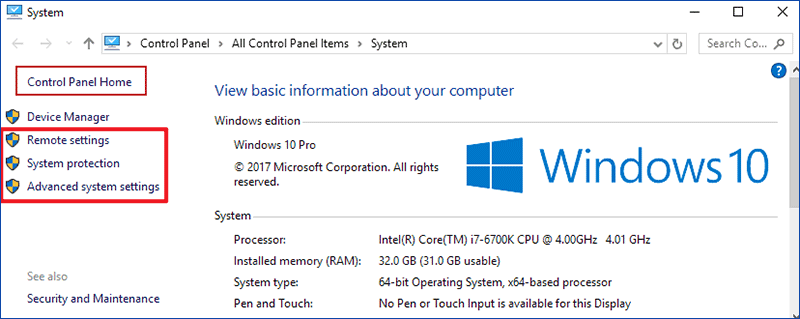
Step 2: Choose Remote settingsSystem protection or Advanced system settings in the System window.

choose-system-setting

Note: This step is a must-do procedure and it won't be repeated in the methods below.

Way 2: Open it via This PC and keyboard shortcuts.

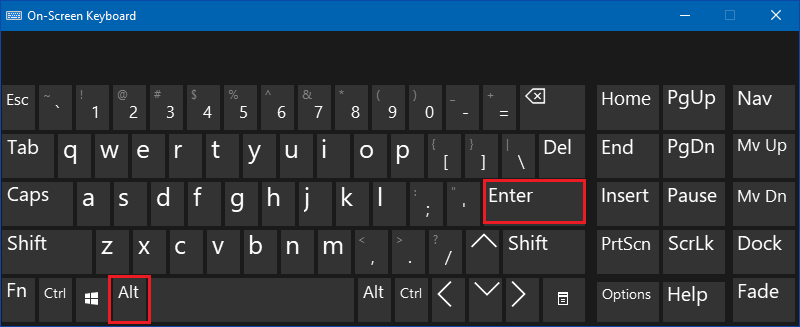
Tap This PC, and press Alt+Enter on the keyboard.

press-alt-and-enter

Way 3: Turn it on via keyboard shortcuts.

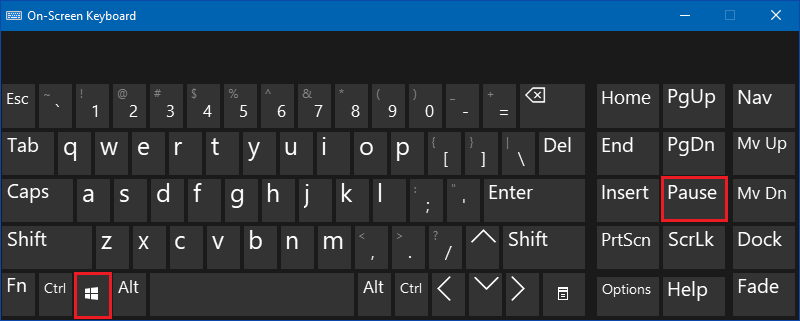
Press Windows+Pause/Break on the keyboard.

press-windows-and-pause-break

Way 4: Open System Properties via searching.

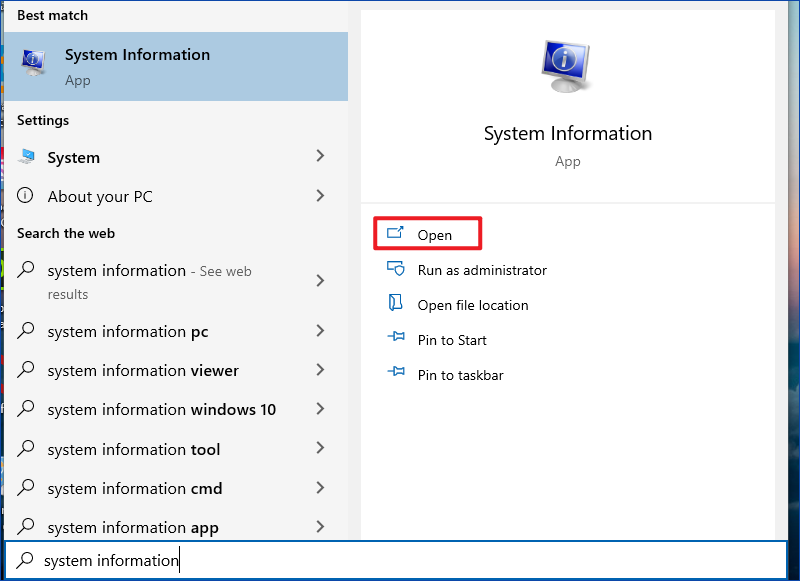
Type system information in the search box on taskbar, and Open it in the result.

open-system-by-search

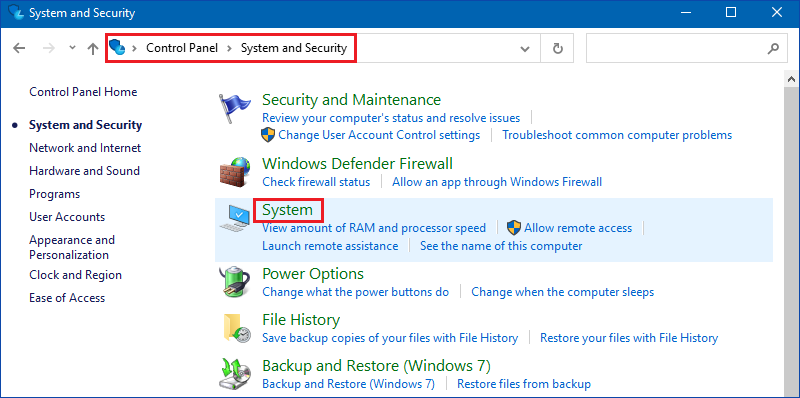
Way 5: Turn it on in Control Panel.

Access Control Panel, choose System and Security and then hit System.

open-system-in-control-panel

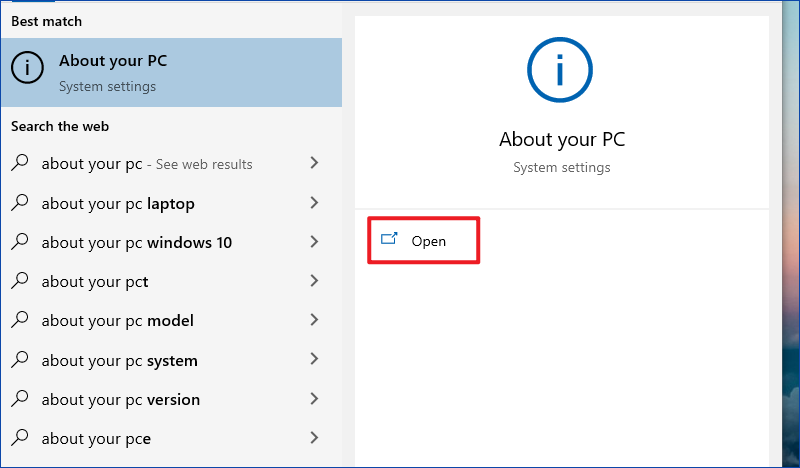
Way 6: Open it through Settings.

Step 1: Search about, and click About your PC in the options.

open-about-your-pc

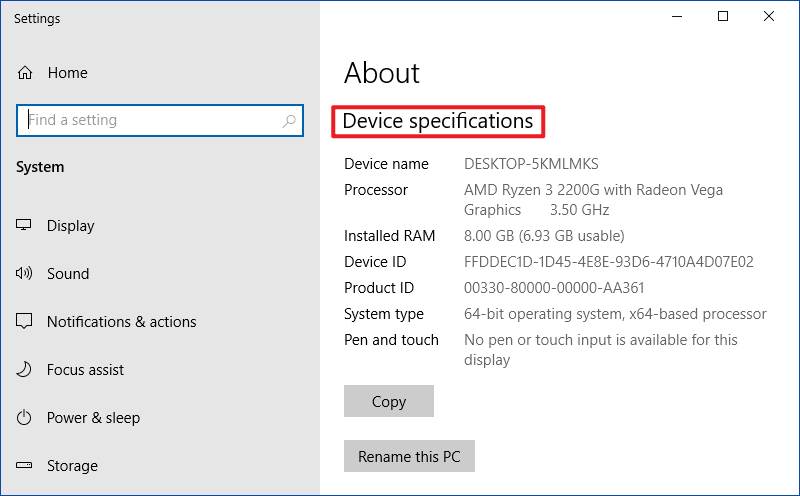
Step 2: The right window will display your Device specifications.

choose-system-info

Command:


Copy this text: *SystemPropertiesAdvanced*


Share:

User Registry Profile Show | Command

Procedure

  1. Open the Windows Registry Editor.
  2. Expand HKEY_LOCAL_MACHINE\SOFTWARE\Microsoft\Windows NT\CurrentVersion\ProfileList.
  3. Select each folder individually and look at the ProfileImagePath key to identify the user profile associated with the selected folder:
[O-Image] Example SID key
Note:
The folder name in the above example; it is S-1-5-21-2060139532-2050374463-2073913816-1157.
  1. Expand the HKEY_USERS\<folder>. In this example, HKEY_USERS\S-1-5-21-2060139532-2050374463-2073913816-1157. This is that user's HKEY_CURRENT_USER. Proceed with the desired modification:
[O-Image] HKEY_USERS\


Command:
Computer\HKEY_LOCAL_MACHINE\SOFTWARE\Microsoft\Windows NT\CurrentVersion\ProfileList


Share:

Enable the Administrator/Admin Account/User | Command

When the Windows® 10 operating system is installed, it will automatically make a User account (this account will have the name you give it during the setup process). By default, the User account that is created has administrator rights and is the main account for the computer. The operating system will also automatically create two additional accounts which, by default, are both kept inactive. One is the Guest account and the other is the Administrator account.

Follow these steps to enable the Administrator account, the Guest account or both.

  1. Right-click the Start button, or press the Windows Logo + X key combination on the keyboard and, from the list, click to select Command Prompt (Admin).

    command prompt admin

    NOTE: If prompted for an administrator password or a User Account Control prompt is displayed, click Yes.

  2. In the Administrator: Command Prompt window, type net user and then press the Enter key.

    admin command prompt

    NOTE: You will see both the Administrator and Guest accounts listed.

    admin command prompt

    • To activate the Administrator account, type the command net user administrator /active:yes and then press the Enter key.

      net user administrator /active:yes

    • To activate the Guest account, type the command net user guest /active:yes and then press the Enter key.

      net user guest /active:yes

  3. Once the Administrator account is enabled, you can sign in to the computer using this account.

    IMPORTANT: By default, the Administrator account is not password-protected. If you are planning to sign in to the computer using the Administrator account, it is recommended that you password protect the account .

Command in text:
ON
net user administrator /active:yes
OFF
net user administrator /active:no


Share:

Saturday, August 6, 2022

Fix network drive permission problem windows 10

Fix “\\computer is not accessible. You might not have permission to use this network resource”


Multiple connections to a server or shared resource by the same user, using more than one user name, are not allowed.

Many users use their Windows 11/10 computers to create and access their data on their servers via their network. Some users have been reporting an error that says that the server is not accessible. The whole error states,

\\server is not accessible. You might not have permission to use this network resource.  Contact the administrator of this server to find out if you have access permissions. Logon Failure: The target account name is incorrect.

Today, we will be checking out how to fix this issue on your Windows 11/10 computer.

You might not have permission to use this network resource

\\server is not accessible, You might not have permission to use this network resource

If this error just started to occur and you have a System Restore Point created already, you can use it to revert it to your earlier settings and configuration.

We will be undertaking the following fixes to try and get rid of this error:

  1. Check the status of the Workstation Service
  2. Reboot your router.
  3. Change File Sharing connections setting
  4. Check the Network configuration.

1] Check the status of the Workstation Service

Type, services.msc in the Start search box and hit Enter to open the Windows Services Manager.

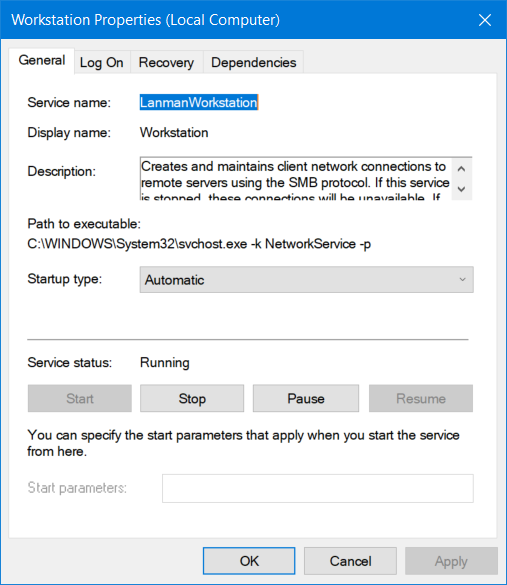
Locate Workstation Service, and then double-click on it to open its Properties box.

Stop the Service and then Start it again. Or else right-click on it and select Restart.

Ensure that its Startup Type is set to Automatic.

2] Reboot your router

Reboot your router from its Admin panel or just manually turn it off and turn it on after 10 seconds to reboot it completely. See if this helps.

3] Change File Sharing connections setting

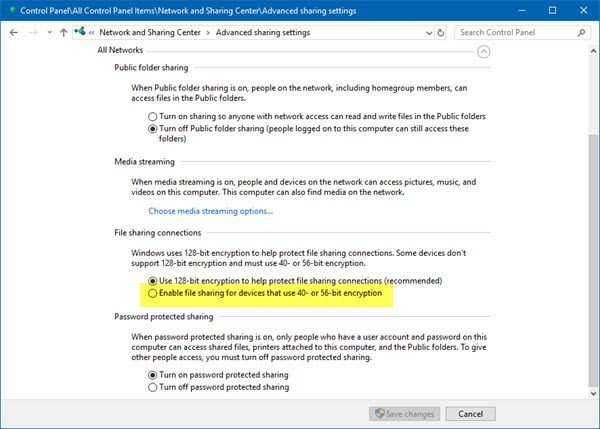
You might not have permission to use this network resource

Open Control Panel > Network and sharing center > Advanced sharing settings > File sharing connections

Select Enable file sharing for devices that use 40- or 56-bit encryption and see if that helps. If not, reverse the changes made.

Fix iT By Command

Step-1


Step-2


CMD: 1 [ net stop workstation /y ]

CMD: 2 [ net start workstation ]

Then Restart your Computer.........


Share:

Thursday, July 14, 2022

Create a Flash Drive to show Hidden Drives to install windows

How To Fix We Couldn't Find Any Drives.To get a storage drive,click load driver.While Installing WindowsAny Drives While Installing Windows.


  • Windows 10, 64-bit*, Windows 11*
  • Size: 14.3 MB
  • SHA1: B96AD473D15F3CEC46B116F1516CE21791D4EE5E
  • Windows 10, 64-bit*, Windows 11*
  • Size: 3.7 MB
  • SHA1: A94E6625ED032A5E380D2B9F6F961EB6C8F5D5EC
  • Windows 10, 64-bit*, Windows 11*
  • Size: 3 MB
  • SHA1: 64BF801B758D1AF696DFDB6647E452622E858630
Download Full Version File


Follow Below Instruction for better solution.....


Share:
Copyright © Kabir iT Solutions | Powered by Kabir | Get PC Softwares Free Design by | Kabir Ahmed