


Fix “\\computer is not accessible. You might not have permission to use this network resource”
Multiple connections to a server or shared resource by the same user, using more than one user name, are not allowed.


Many users use their Windows 11/10 computers to create and access their data on their servers via their network. Some users have been reporting an error that says that the server is not accessible. The whole error states,
\\server is not accessible. You might not have permission to use this network resource. Contact the administrator of this server to find out if you have access permissions. Logon Failure: The target account name is incorrect.
Today, we will be checking out how to fix this issue on your Windows 11/10 computer.

\\server is not accessible, You might not have permission to use this network resource
If this error just started to occur and you have a System Restore Point created already, you can use it to revert it to your earlier settings and configuration.
We will be undertaking the following fixes to try and get rid of this error:
- Check the status of the Workstation Service
- Reboot your router.
- Change File Sharing connections setting
- Check the Network configuration.
1] Check the status of the Workstation Service
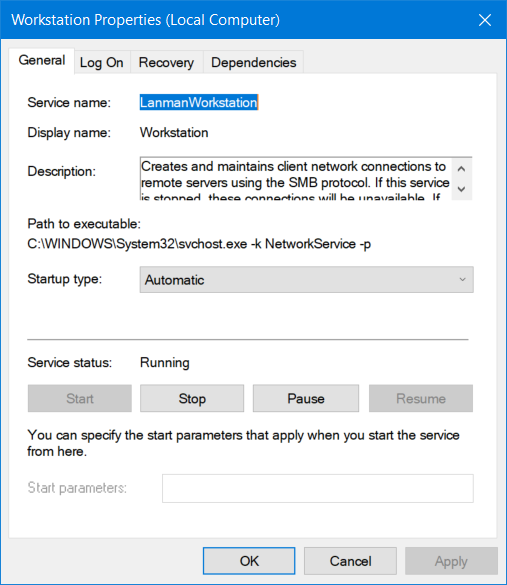
Type, services.msc in the Start search box and hit Enter to open the Windows Services Manager.
Locate Workstation Service, and then double-click on it to open its Properties box.
Stop the Service and then Start it again. Or else right-click on it and select Restart.
Ensure that its Startup Type is set to Automatic.
2] Reboot your router
Reboot your router from its Admin panel or just manually turn it off and turn it on after 10 seconds to reboot it completely. See if this helps.
3] Change File Sharing connections setting
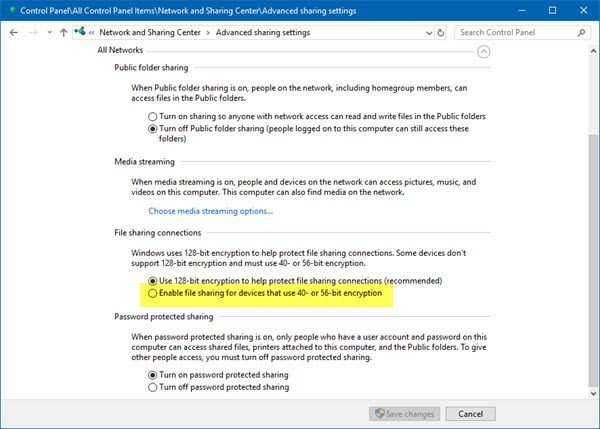
Open Control Panel > Network and sharing center > Advanced sharing settings > File sharing connections
Select Enable file sharing for devices that use 40- or 56-bit encryption and see if that helps. If not, reverse the changes made.
Fix iT By Command

Step-2


