There may come a time when you’ll need to change your AnyDesk address if you have a new Windows, Android and iOS device. The need may also arise if you’ve changed companies or you want to disconnect from a previous platform.

Find the “ID and Alias” settings
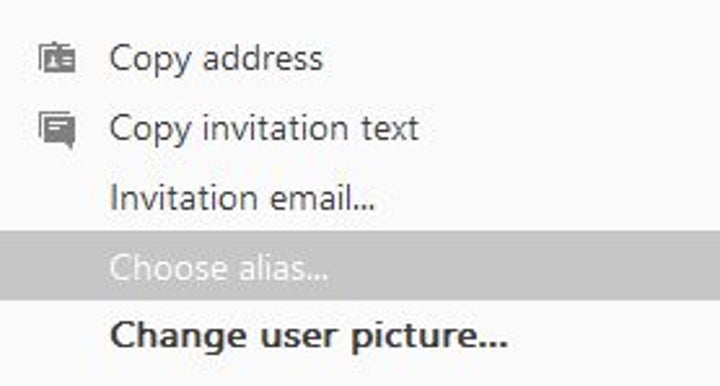
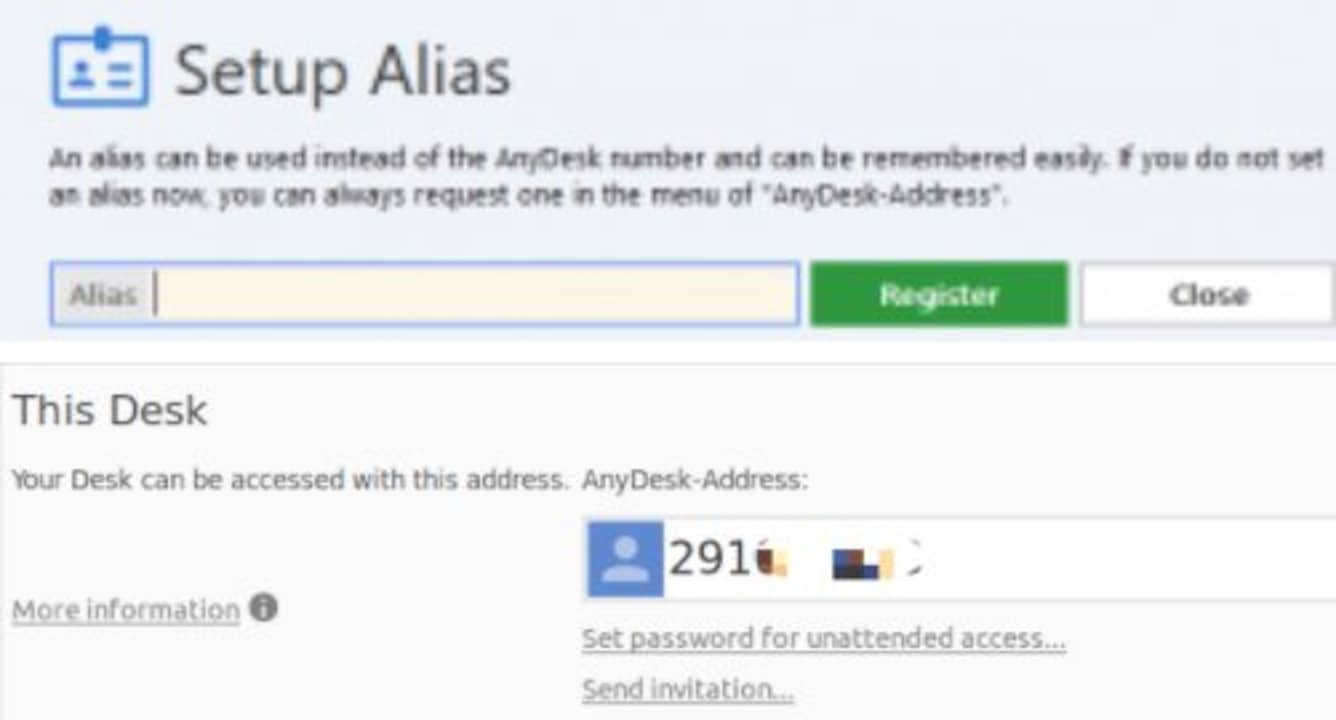
Open the Anydesk app on your computer and click “Settings.” A window will pop up where you’ll find the “ID and Alias” settings. Select “Choose Alias.”
Input the new address and save
Once you click the setting, another window will appear, where you’ll be able to set an easy-to-remember address, which usually consists of numbers, letters, and some signs (dots, minuses, and underscores). Ensure that the address you’re choosing is unique, as you’ll not be able to repeat one if it’s in use by someone else.
Reset AnyDesk Remote Desktop ID | Alias Free Download
Click on the link below to Reset AnyDesk Free Download. This is a full offline installer for Windows Operating System.