

Why pen drive shows less space?
The flash drive can get damaged easily if not used carefully. “Why my 16gb pen drive only shows 4mb now? How to fix?” one user asked. While a lot of people said they had encountered the same problem, too. Generally speaking, a pen drive showing less space than its actual size happens in those situations like:
Removing the pen drive suddenly while it is working.
Interruption before formatting completed or using some third-party software inappropriately.
Installing bootable OS (operating system) such as Chrome or Linux. It will change the partition system of your pen drive so some free space will appear.
Computer virus or malware.
Don’t be hurry to throw it away because there still exists a solution. That is cleaning the pen drive completely and recreating a primary partition. You can find how to deal with pen drive showing less capacity from the following article.
2 Solutions to pen drive showing less space than actual
Now, you can try the following two solutions to check if the pen drive can show correct capacity then.
!!! In order to avoid losing important data during fixing pen drive incorrect size issue, you can make a backup using free backup software.
Solution 1. Use Diskpart to make pen drive show full space
The most simple way is to delete paritions on pen drive. Generally, you can use Windows Disk Management, but it does not allow you to delete volume on removable disk or delete/format system related partition. Thus, it comes to another Windows native tool named Diskpart.
Step 1: Connect the pen drive to your computer and make sure it is detected.
Step 2: Search “Command Prompt” in the Start menu. Right click its shortcut and select “Run as administrator”.
Step 3: Type “diskpart” → Enter.
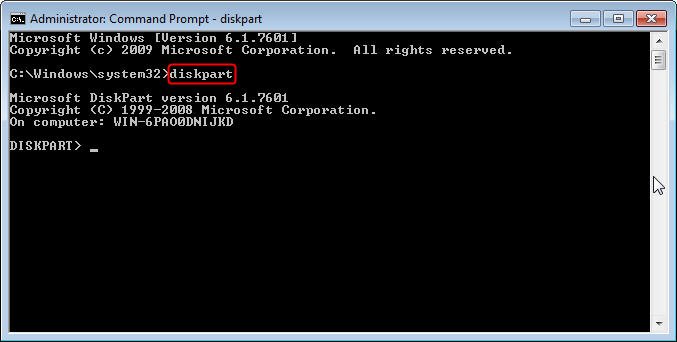
Step 4: Type “list disk” → Enter. It will show you disks connected to the computer.

Step 5: Type “select disk #” → Enter. (Replace # with the number which is identified as the pen drive in your computer.)
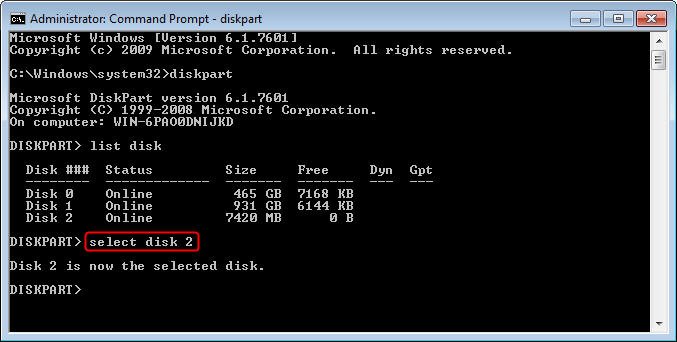
Note: Be careful when entering the number, otherwise everything on the disk you choose will disappear.
Step 6: Type “clean” → Enter.
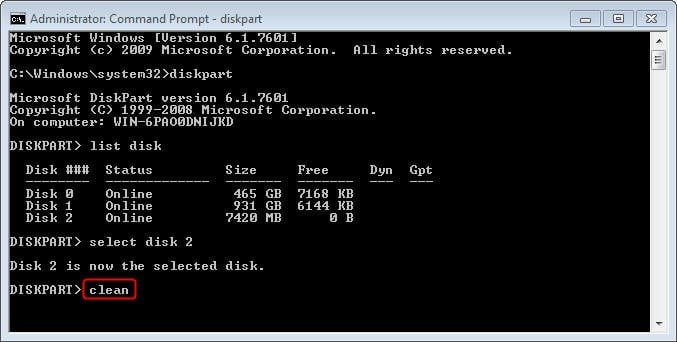
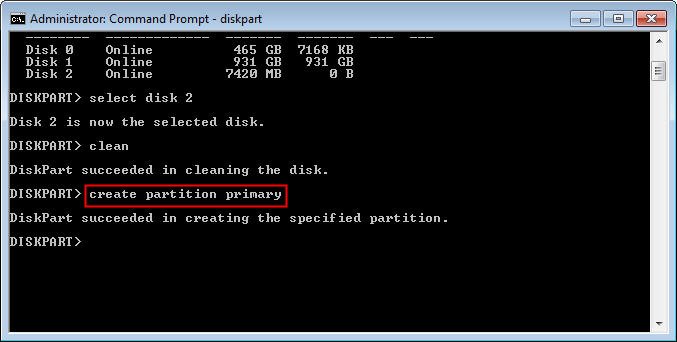
Step 7: Type “create partition primary” after you see “Diskpart succeeded in cleaning the disk”. If you want to create more than one partition on the pen drive, specify the partition size by this syntax: create partition primary size=#. For example, to create a 4000MB partition, run the command “create partition primary size=4000”.
Solution 2. Fix flash drive showing less capacity with partition manager
AOMEI Partition Assistant Standard is a free yet powerful disk partition management tool. It is more versatile than all Windows native tools such as Disk Management, DiskPart or Windows File Explorer. It applies to Windows 7/8/10 and Windows XP/Vista (all editions). Compared with Diskpart, this program is much easier to operation even for those without basic computer knowledge.
To solve “pen drive,flash drive or other USB drives showing less capacity” in Windows 10/8/7, you can try to wipe the disk totally. Detailed steps are listed below:
Step 1: Download and install the software.
Step 2: Connect the pen drive to your computer. Launch Partition Assistant.
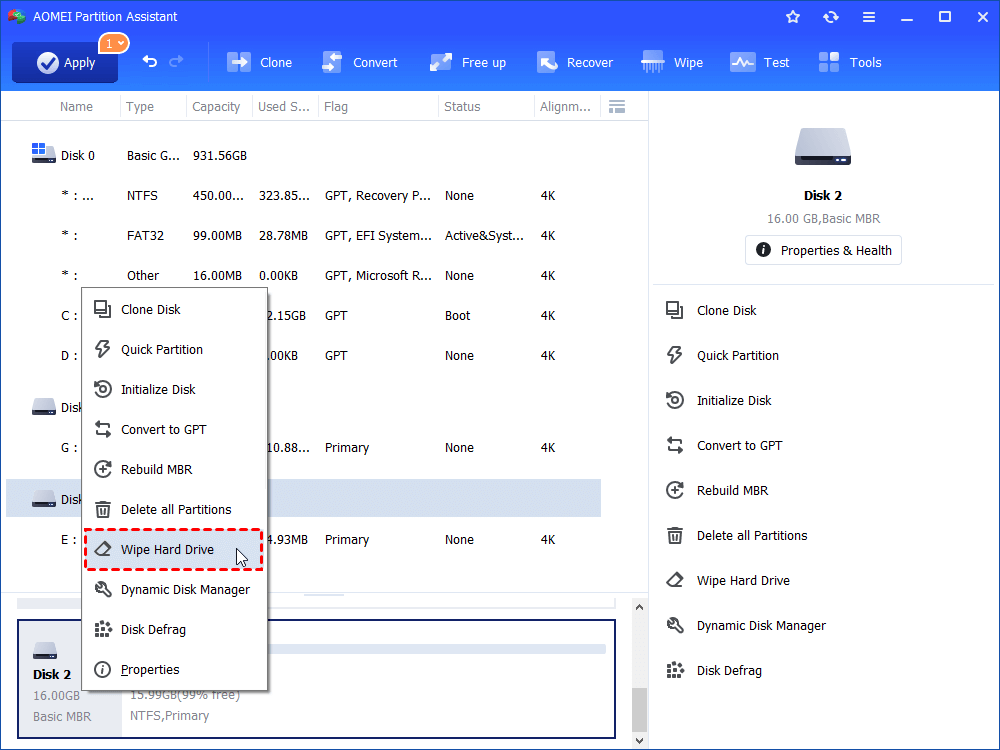
Step 3: Right click the removable device. Select Wipe Hard Drive.
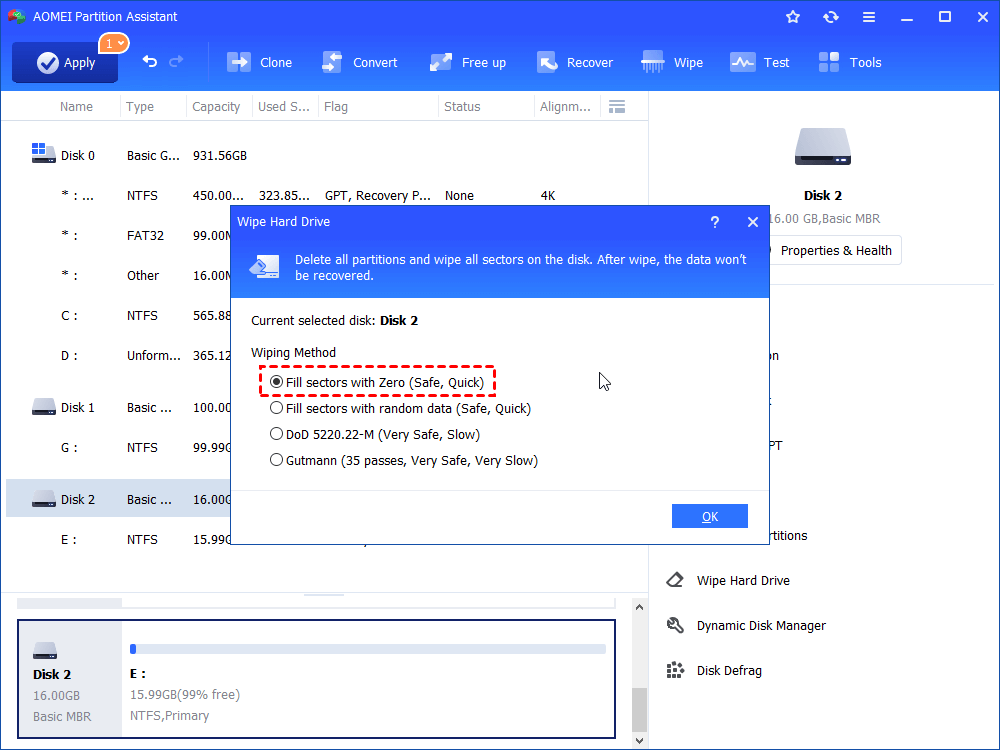
Step 4: Choose the first option "Fill sectors with Zero" and click OK. To use left three advanced options, please upgrade to Professional edition.
Step 5: Click “Apply” for final execution.
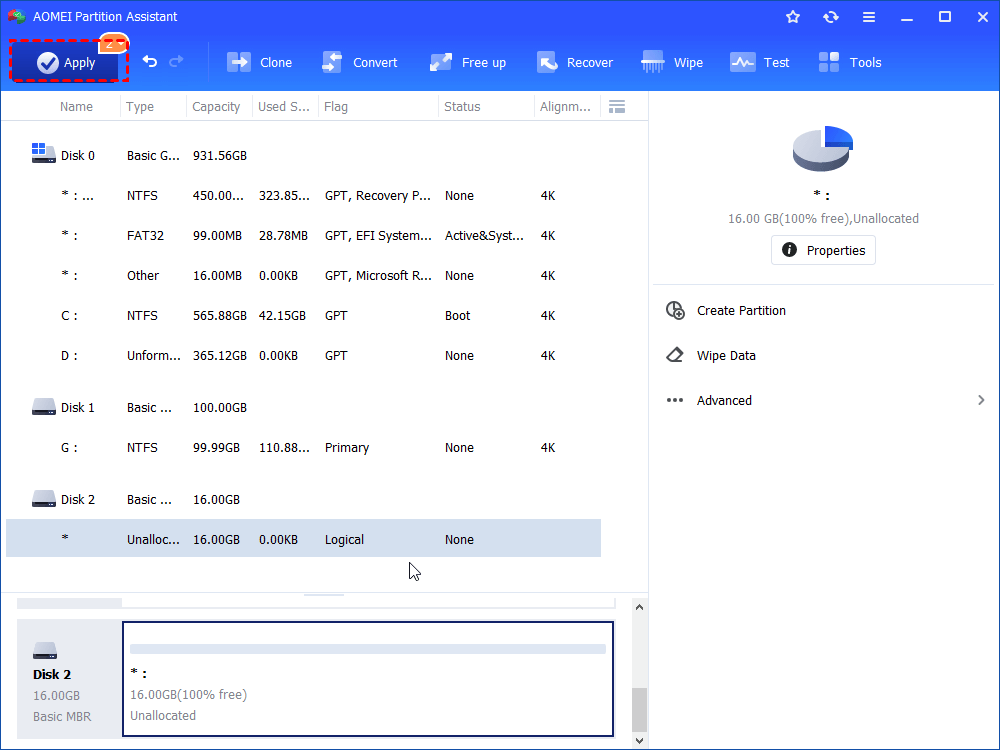
After wiping it completely, you can create a new partition on the unallocated space. Then the pen drive will show its full size.


